Reports & Accounting

Hand your bookkeeper the month without putting it together yourself. Reports build themselves and go out on the schedule you set, and the QuickBooks, Xero or CSV exports already keep charges and reimbursements apart.

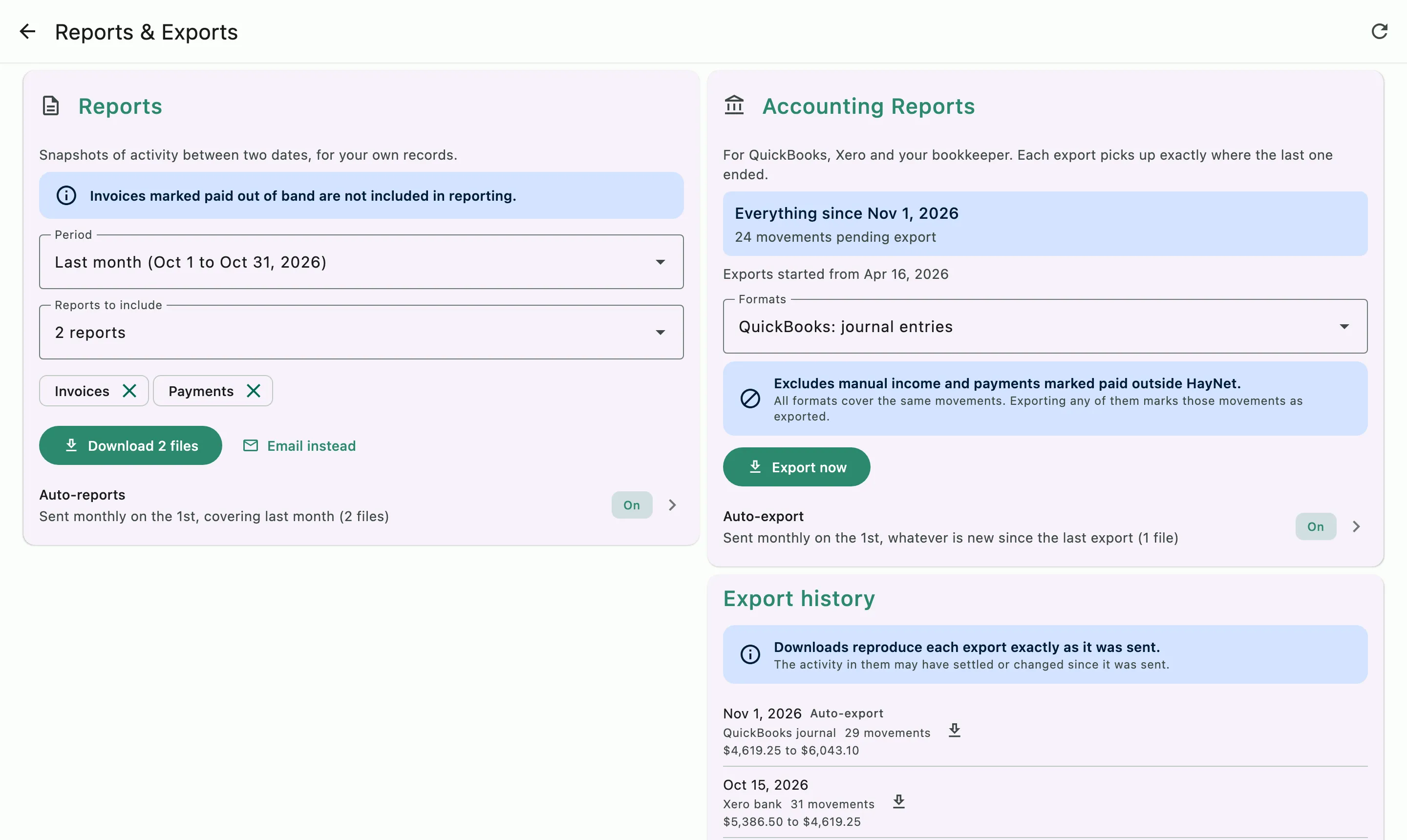
Reports & Exports: reports for a date range, accounting exports for QuickBooks and Xero, and the export history

How it works

The numbers behind the barn, ready when you need them

Pull a report for any stretch of time, from last month to the whole tax year. The reports your bookkeeper needs every month can be emailed on a schedule, so nobody has to remember to send them. When it's time to update the books, the QuickBooks, Xero or CSV exports are ready to import.

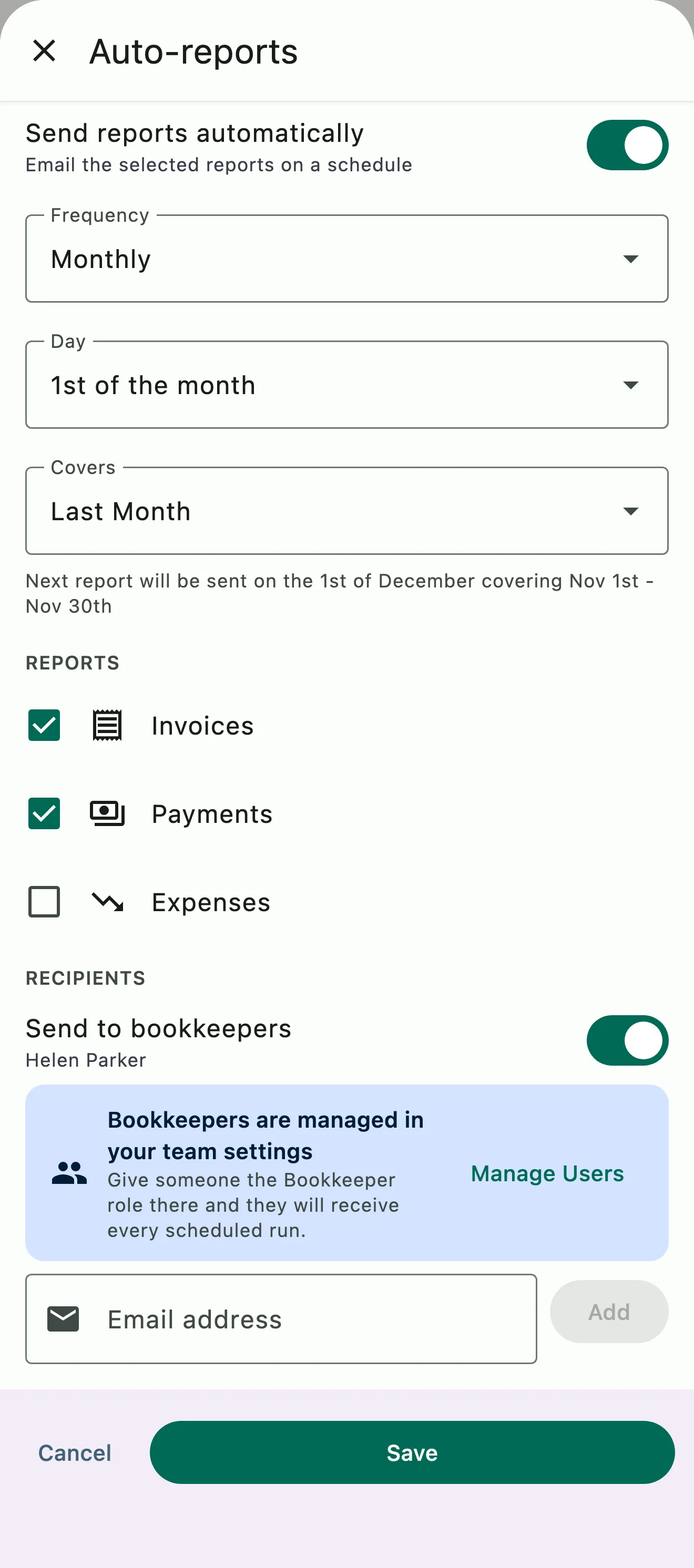
Auto-reports set to email the invoices and payments reports to the bookkeeper on the 1st of every month

Reports on a schedule

Your bookkeeper gets the reports without asking

Run a CSV report whenever you need one, or set it to arrive on a schedule for you and your bookkeeper. The Payment Reconciliation Report summarizes payment activity invoice by invoice, ready to forward without distilling it first.

  • Automated and manual CSV reports
  • Sent on a schedule to you and your bookkeeper
  • The Payment Reconciliation Report
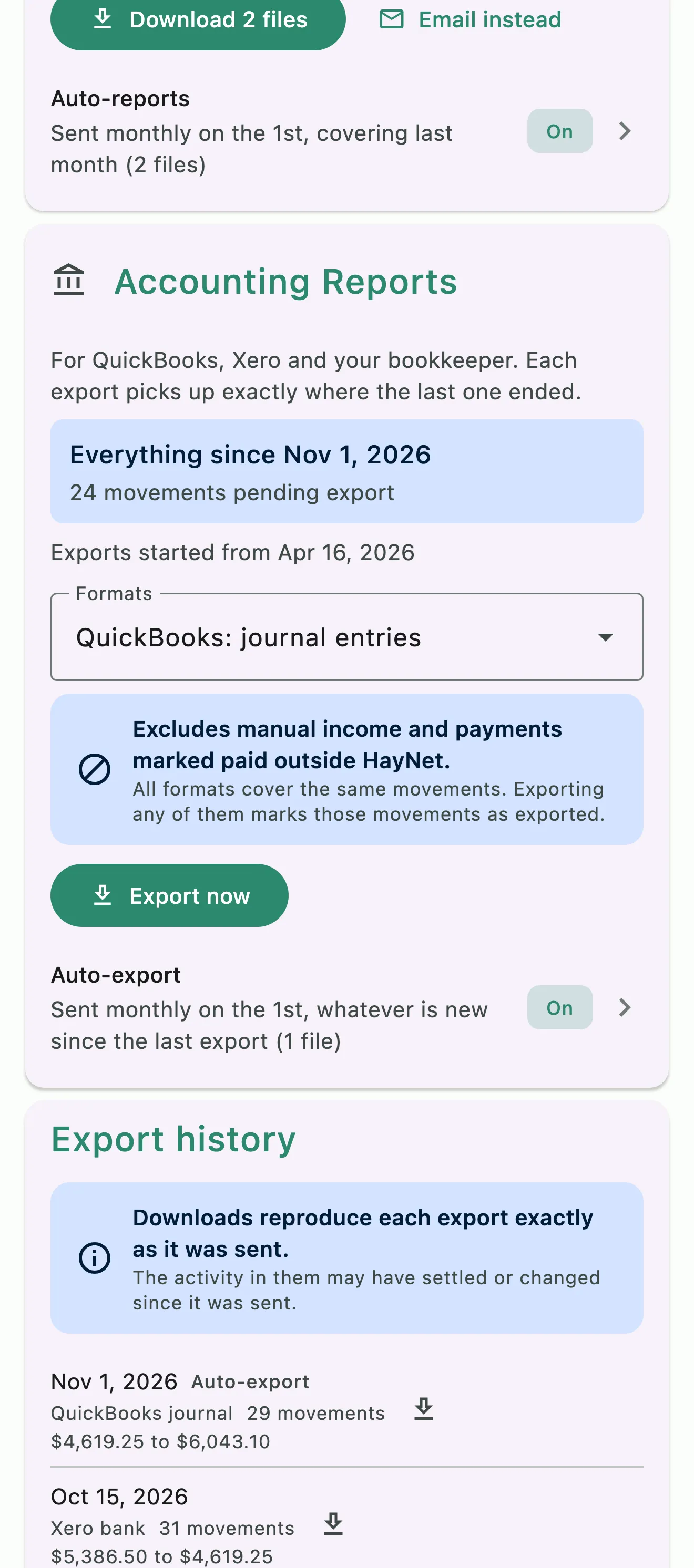
Accounting Reports: movements waiting to export, the QuickBooks format, auto-export, and export history

QuickBooks, Xero or CSV exports

Exports built for your accounting software

Export to QuickBooks, Xero or CSV with charges and reimbursements already told apart, so your books match HayNet without a cleanup pass at the end of the month. Set them to export automatically, and each one picks up exactly where the last one ended.

  • QuickBooks export
  • Xero export
  • CSV export
  • Charges and reimbursements kept separate

Common questions

About reports

I manage my own books. Can I pull reports?

Yes. Under Manage › Finances › Reports, download CSV reports for any period: the Payment Reconciliation Report, with each invoice and its payments and deposits; a revenue report; a transactions report of every payment, refund and fee; and your recorded expenses.

The Accounting Reports card on the same screen exports files built for QuickBooks and Xero, plus a detailed CSV statement, with charges and reimbursements kept separate.

Can my bookkeeper get reports automatically?

Yes. Give your bookkeeper the Bookkeeper role in Manage › Manage Users, then turn on Auto-reports under Manage › Finances › Reports. The reports you pick are emailed on a schedule to everyone with the Bookkeeper role. If your bookkeeper isn't a member of your organization, add their email address as a recipient instead.

You can also email a period's reports whenever you need them.

Does HayNet work with QuickBooks or Xero?

Yes, through exports built for each. Under Manage › Finances › Reports, the Accounting Reports card exports QuickBooks journal entries, QuickBooks bank transactions, and a Xero bank statement, ready to import. It also exports a detailed CSV statement for any other accounting software.

Each export picks up exactly where the last one ended, and charges and reimbursements are already told apart, so your books match HayNet without a cleanup pass at the end of the month.

Are reimbursements kept out of my income?

Yes. When you pay for something on a client's behalf, like stall fees at a show, a vet bill or hauling fuel, and charge it back, it's a reimbursement. Tag the line on the invoice as a reimbursement, or log the expense in Expenses and pick the client under Invoice to (coming soon).

Either way it stays out of income across your invoices, reports and exports. Your gross and net show what the barn actually earned.

See the full FAQ

Hand your bookkeeper a clean month.

No card required. Available on Apple iOS, Android and Web.